Table of Contents
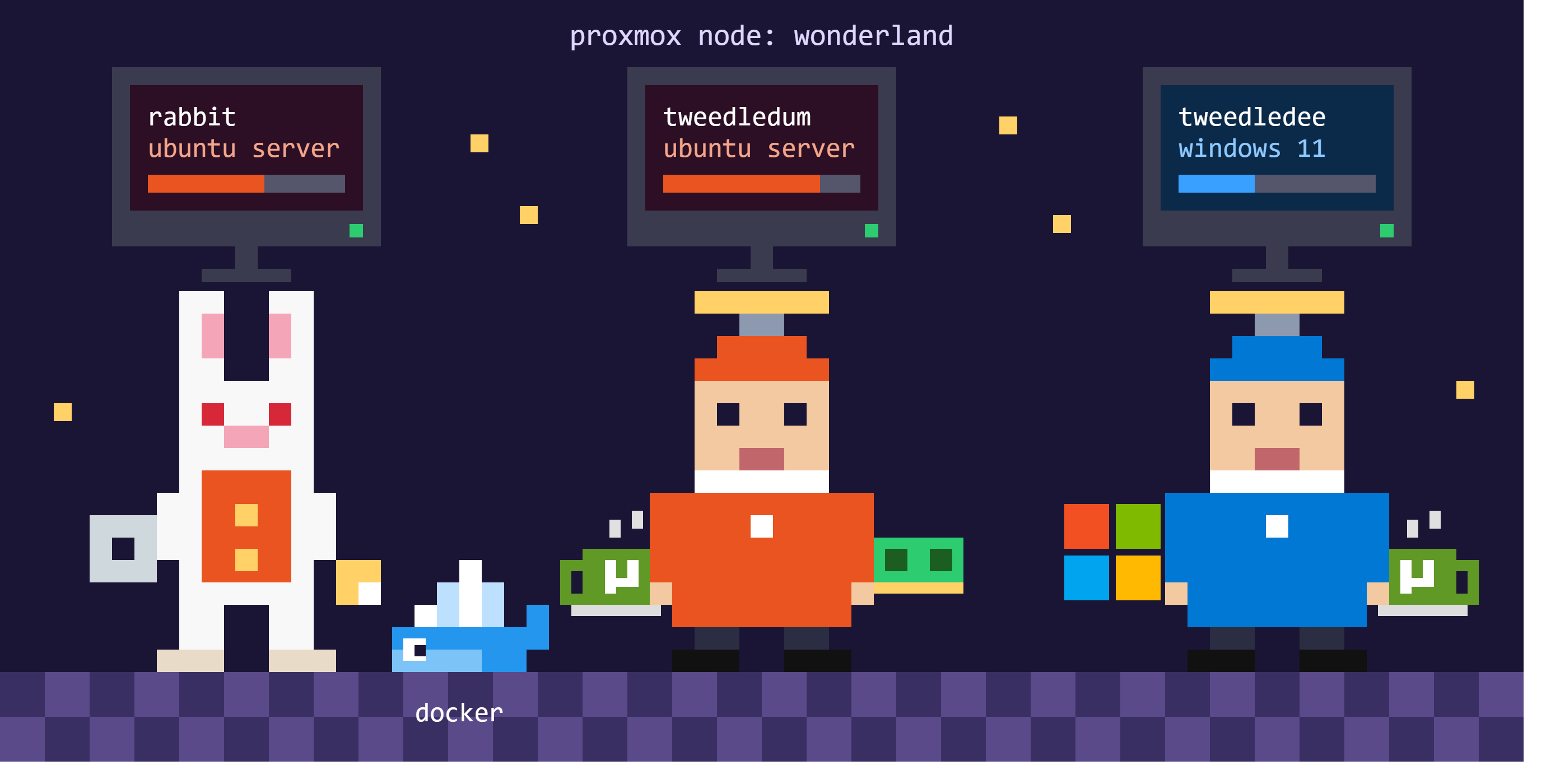
TL;DR: In this post, three VMs are set up on my Proxmox host wonderland, each cloned from an Ubuntu Server 26.04 or Windows 11 Pro template:
rabbit: an always-on Docker host for my self-hosted servicestweedledee: an Ubuntu Gitea Actions runner for Linux builds and packaging releasestweedledum: a Windows 11 Gitea Actions runner for MSVC/MSBuild builds like SNAILNET
Overview
This writeup documents the first three virtual machines on wonderland, my Proxmox VE host. Together they form the base of my self-hosted CI/CD setup: one box that stays up and hosts the services, and two runners for my repos on gitea.com that build and package releases.
Building the VMs
All three VMs are full clones of a template, built and set up with these tutorials:
- Proxmox VM: Ubuntu Server 26.04 Template and Setup: the
ubuntu-basetemplate forrabbitandtweedledee - Proxmox VM: Windows 11 Pro Template and Setup: the
win11-basetemplate fortweedledum
Follow the template’s “Clone a VM from the Template” step for each one, using the VM’s name as its hostname and these hardware settings:
| VM | Template | Cores | Memory | Disk | Start at boot |
|---|---|---|---|---|---|
rabbit |
ubuntu-base |
4 |
16384 MiB (16 GB) |
+40 GB (100 GB) |
Yes |
tweedledee |
ubuntu-base |
4 |
8192 MiB (8 GB) |
+20 GB (80 GB) |
Optional |
tweedledum |
win11-base |
8 |
16384 MiB (16 GB) |
None (150 GB) | Yes |
rabbitgets the most memory and disk because it runs every service and stores their data.Start at bootis on because everything else depends on it.tweedledeeneeds cores for compile jobs and extra disk for toolchains and Docker images. It only has to be up when jobs run.tweedledumgets the most cores because MSVC builds are heavy, and the template’s 150 GB disk already has room for Visual Studio Build Tools, so it isn’t resized.
rabbit: Docker Host (Ubuntu Server 26.04 LTS)
Why rabbit?
Like the White Rabbit, always checking his pocket watch, rabbit never stops running and keeps track of everything. It runs Docker Engine and my compose stacks. Unlike the White Rabbit, though, I don’t want it in a panic. It should be stable, boring, and never late.
Install Docker Engine on rabbit
Install Docker Engine from Docker’s official apt repo, not the snap. First, add the repo and its signing key:
# Docker's GPG key
sudo apt update
sudo apt install -y ca-certificates curl
sudo install -m 0755 -d /etc/apt/keyrings
sudo curl -fsSL https://download.docker.com/linux/ubuntu/gpg -o /etc/apt/keyrings/docker.asc
sudo chmod a+r /etc/apt/keyrings/docker.asc

# Docker's apt repo for this Ubuntu release
sudo tee /etc/apt/sources.list.d/docker.sources <<EOF
Types: deb
URIs: https://download.docker.com/linux/ubuntu
Suites: $(. /etc/os-release && echo "${UBUNTU_CODENAME:-$VERSION_CODENAME}")
Components: stable
Signed-By: /etc/apt/keyrings/docker.asc
EOF
sudo apt update
Then install Docker Engine, the CLI, containerd, and the Buildx and Compose plugins:
sudo apt install -y docker-ce docker-ce-cli containerd.io docker-buildx-plugin docker-compose-pluginCheck that the service is running:
sudo systemctl status docker --no-pagerTo run docker without sudo, add your user to the docker group. Members of this group effectively have root on the host. The group change only applies after you log back in, so test it in the new session:
sudo usermod -aG docker $USER
exit    # log out, SSH back in
docker run --rm hello-world
docker compose version
hello-world should print Hello from Docker!, and docker compose version should show the Compose plugin’s version.
Services on rabbit
With Docker running, rabbit hosts my self-hosted services as compose stacks:
- Arcane: a web UI for managing Docker containers, images, volumes, and compose stacks, so most day-to-day work on
rabbithappens in the browser instead of over SSH. Setup is covered in my Ubuntu Server + Docker + Arcane post. - Immich: self-hosted photo and video storage. It moved my old phones’ photos onto the server, and I can browse them from the Immich app whenever I’m on my home network.
tweedledee: Linux Runner (Ubuntu Server 26.04 LTS)
Why tweedledee?
Like the twins in Through the Looking-Glass, tweedledee and tweedledum look almost identical: both run gitea-runner and sit waiting for jobs. They’re mirror images, though, one on Linux and one on Windows.
tweedledee builds and tests my Linux projects, and will package every release, including the Windows builds from tweedledum, for the Gitea package registry. Each job runs in a throwaway Docker container, which suits its bursty, messy load: build jobs install toolchains, fill disks, and sometimes misbehave.
Install Docker Engine on tweedledee
Install Docker Engine the same way as on rabbit (Install Docker Engine on rabbit), so jobs can run in containers.
Install the Gitea Runner on tweedledee
Follow the Ubuntu steps in Gitea Runner: Download and Install on Windows and Ubuntu, registering against gitea.com with:
--name tweedledee--labels tweedledee:docker://gitea/runner-images:ubuntu-latest, so a workflow’sruns-on: tweedledeelands here and each job runs in a throwaway container
tweedledum: Windows Runner (Windows 11 Pro 25H2)
Why tweedledum?
tweedledum is the twin on the Windows side of the glass. It builds MSVC, MSBuild, and Win32 projects like SNAILNET, which Linux can’t build natively.
Install the Build Tools on tweedledum
tweedledum uses the Visual Studio 2026 Build Tools with the Desktop development with C++ workload, which includes MSBuild and the v145 toolset that SNAILNET targets. Jobs also need Git, and Node.js for JavaScript actions like actions/checkout. From an admin PowerShell:
winget install -e --id Microsoft.VisualStudio.BuildTools --accept-source-agreements --accept-package-agreements --override "--passive --wait --add Microsoft.VisualStudio.Workload.VCTools --includeRecommended"
winget install -e --id Git.Git --accept-source-agreements --accept-package-agreements
winget install -e --id OpenJS.NodeJS.LTS --accept-source-agreements --accept-package-agreements--overridereplaces winget’s default installer arguments, so--waitis needed to keep winget from returning before the install finishes.--includeRecommendedadds the Windows 11 SDK and the latest MSVC tools. Without it, Win32 projects won’t findwindows.h.- The
--accept-*flags skip winget’s agreement prompts, which show up the first time it runs on a fresh clone.
Check that MSBuild can be found the same way the build jobs will look for it:
& "${env:ProgramFiles(x86)}\Microsoft Visual Studio\Installer\vswhere.exe" -latest -products * -requires Microsoft.Component.MSBuild -find "MSBuild\**\Bin\MSBuild.exe"It should print a path in the 18 (Visual Studio 2026) folder:
C:\Program Files (x86)\Microsoft Visual Studio\18\BuildTools\MSBuild\Current\Bin\MSBuild.exeOptionally, turn on long path support. Job workspaces live under the runner service’s profile, and deep source trees can pass Windows’ old 260-character limit, which makes Git and MSBuild fail with “path too long” errors. In a new admin PowerShell, so git is on the PATH:
New-ItemProperty -Path HKLM:\SYSTEM\CurrentControlSet\Control\FileSystem -Name LongPathsEnabled -Value 1 -PropertyType DWORD -Force
git config --system core.longpaths true
Windows Update can also restart the VM on its own and kill a job that’s running. Set Active hours under Settings > Windows Update > Advanced options to cover when builds usually run, or pause updates during release work.
Install the Gitea Runner on tweedledum
Follow the Windows steps in Gitea Runner: Download and Install on Windows and Ubuntu, registering against gitea.com with:
--name tweedledum--labels tweedledum:host, so a workflow’sruns-on: tweedledumlands here and jobs run directly on Windows with the Build Tools installed above
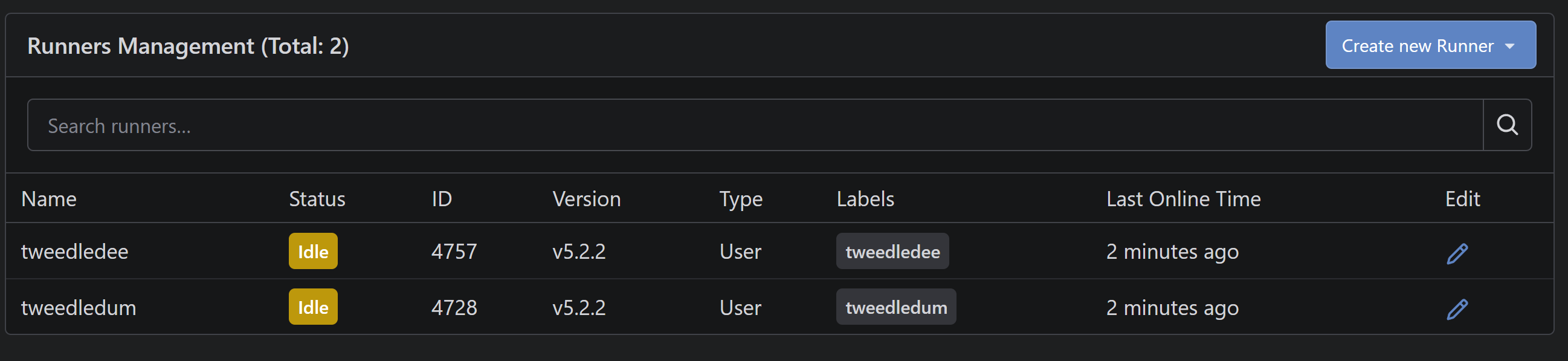
When it’s done, both twins show as Idle under User Settings > Actions > Runners on gitea.com and stay that way after a reboot:
First Build: SNAILNET
With tweedledum registered, SNAILNET builds on it with every push and pull request to main and the rc* branches, and on v* tags. The core of its workflow:
jobs:
  build:
    runs-on: tweedledum
    steps:
      - name: Checkout
        uses: actions/checkout@v4

      - name: Build SnailNet
        uses: https://gitea.com/Kyle-Spicer/GitOps/actions/msbuild-release@main
        with:
          project: SnailNet/SnailNet.slnx
          configuration: Release
          platform: x64

      - name: Upload SnailNet
        uses: https://gitea.com/Kyle-Spicer/GitOps/actions/upload-build@main
        with:
          name: snailnet-windows-x64
          path: SnailNet/Build/x64/Release/SnailNet.exe
runs-on: tweedledum matches the runner’s label, so the job runs directly on the VM. The build step is a reusable action from my GitOps repo, so other MSBuild projects can share it:
locate-msbuildruns the samevswherelookup from Install the Build Tools on tweedledum, then switches to the 64-bitamd64\MSBuild.exenext to it when there is one.msbuild-releaseruns that MSBuild on the solution with/m /nologo /restoreand the given configuration and platform, and fails the job if the build fails.
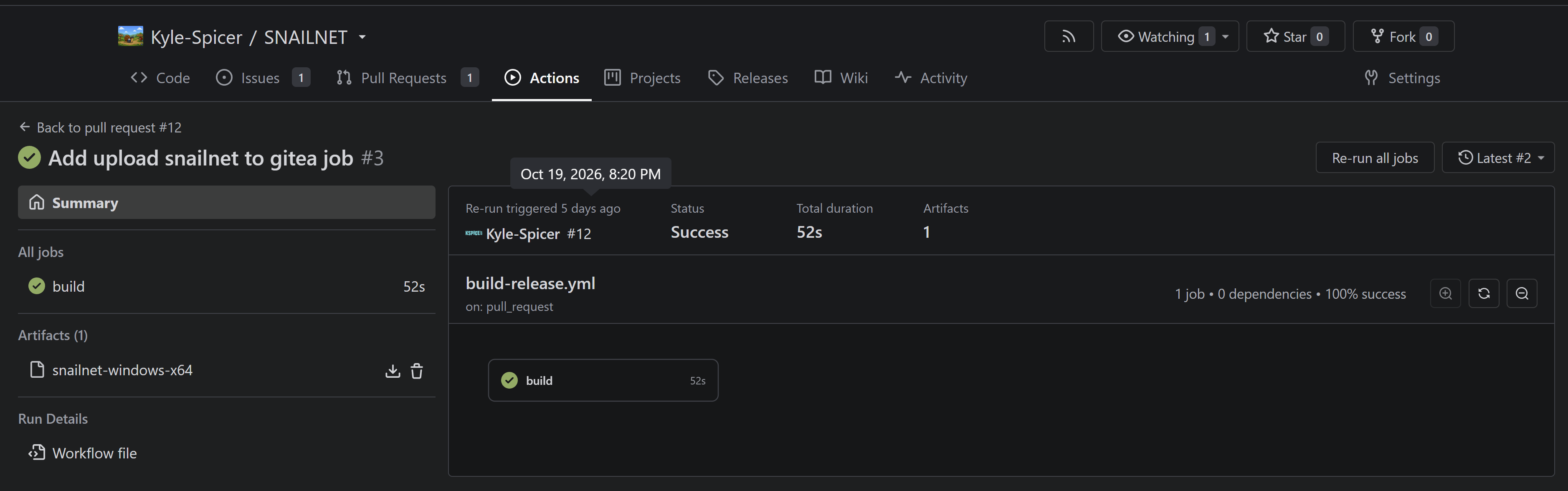
A good run looks like this, and its log shows Using MSBuild: with a path under Microsoft Visual Studio\18\BuildTools. The build is uploaded as the snailnet-windows-x64 artifact. Packaging it on tweedledee will be covered in a future post on Gitea workflows.